Live Map
VATSIM and IVAO live map for phpVMS 7: your own flights with a compact flights list, controller sectors, your colours, any theme, FTP install.
VATSIM- und IVAO-Live-Map für phpVMS 7: eure eigenen Flüge mit kompakter Flugliste, Lotsensektoren, eure Farben, jedes Theme, Installation per FTP.
What it is
Was es ist
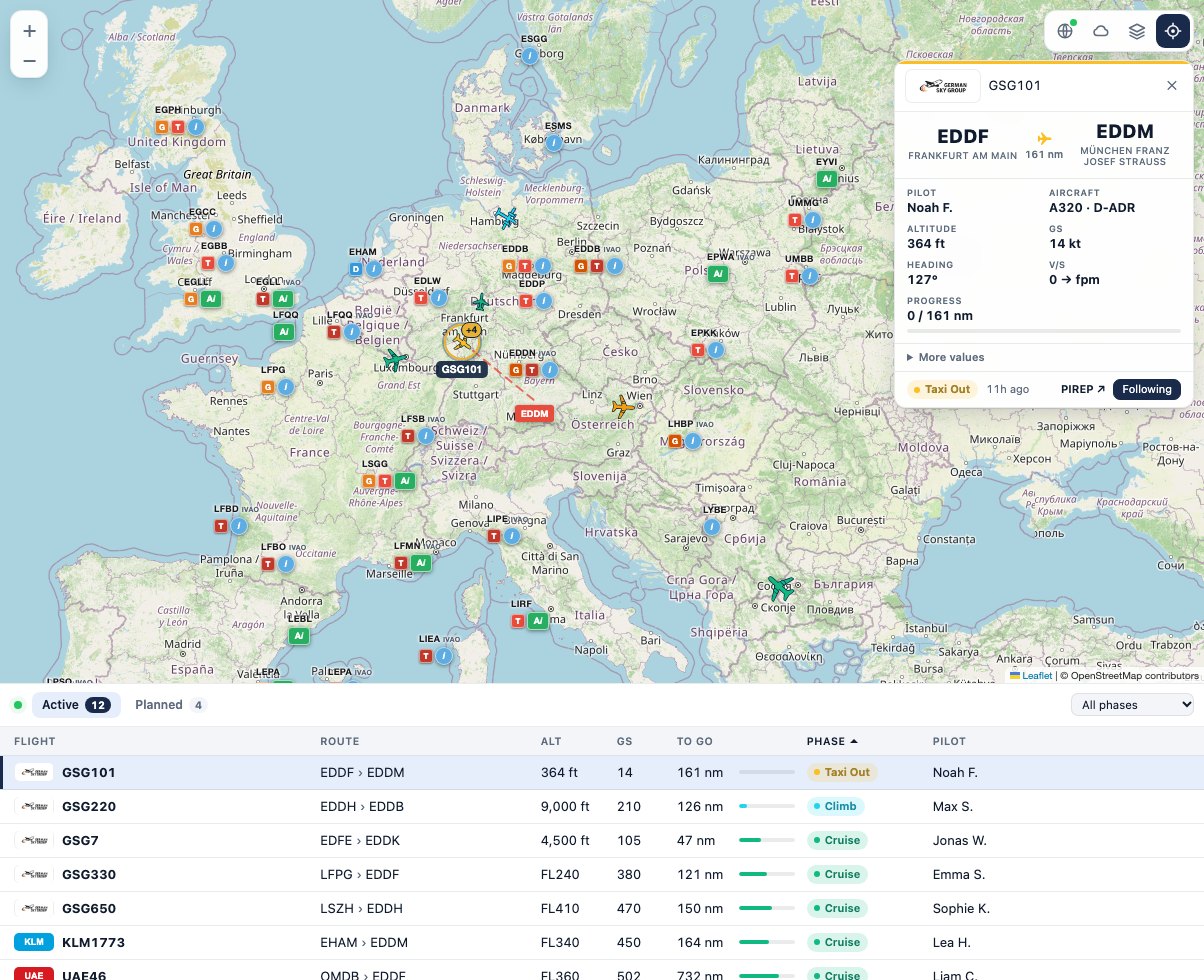
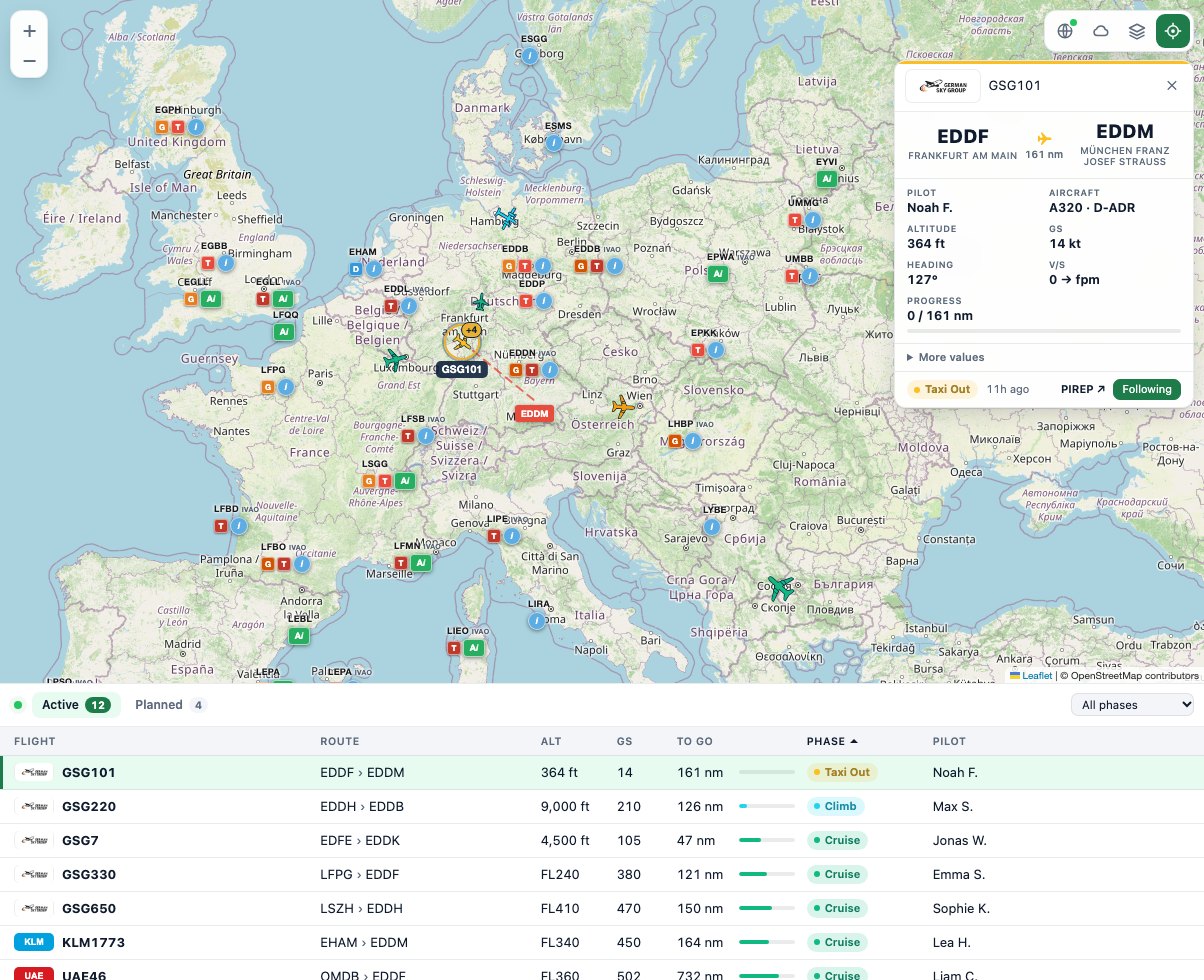
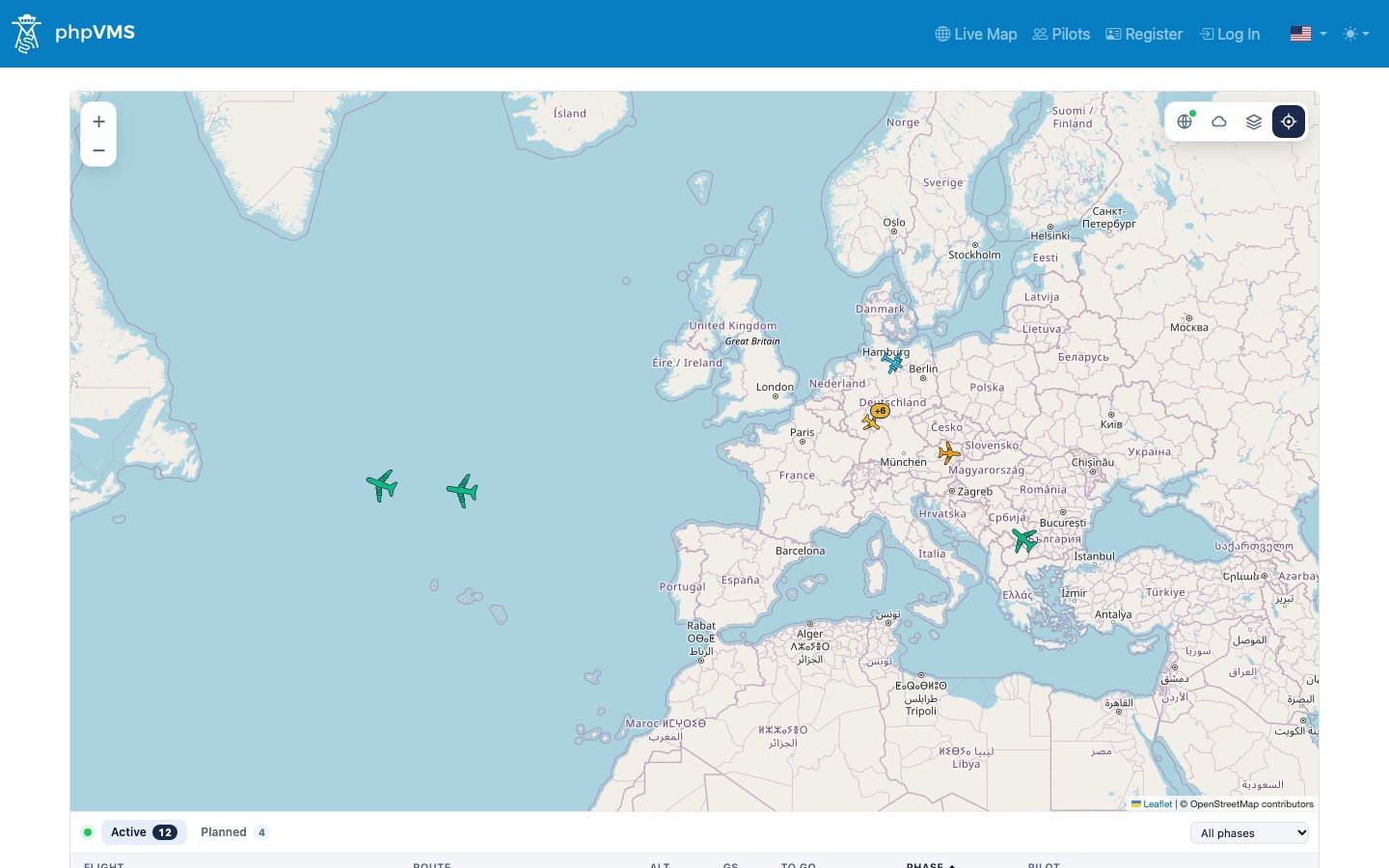
The Live Map shows your own flights and the VATSIM and IVAO network on one interactive map inside your phpVMS site. Pilots see where your airline is flying right now, which sectors are staffed and how far each flight still has to go. Version 5.1 brings back the compact look, works with any theme and is set up on one tidy admin page.
Die Live Map zeigt eure eigenen Flüge und das VATSIM- und IVAO-Netzwerk auf einer interaktiven Karte in eurer phpVMS-Seite. Piloten sehen, wo eure Airline gerade fliegt, welche Sektoren besetzt sind und wie weit jeder Flug noch hat. Version 5.1 bringt die kompakte Optik zurück, läuft mit jedem Theme und wird auf einer aufgeräumten Admin-Seite eingestellt.
What pilots get
Was Piloten bekommen
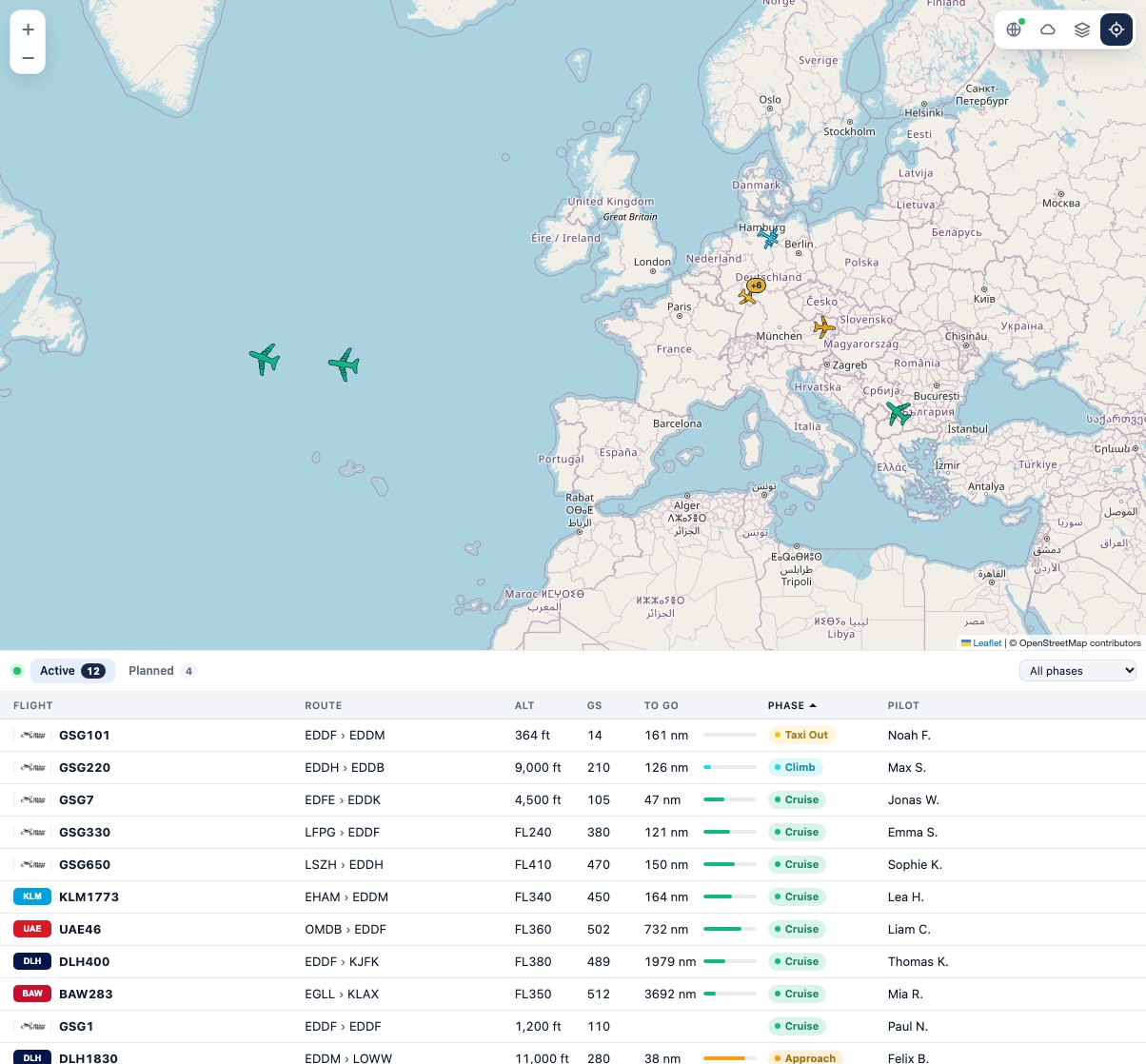
- Flights list: active and planned flights with route, aircraft type, altitude, speed, distance to go with a progress bar, estimated arrival (ETA), phase and pilot. Click a column to sort. Below the map (default), on top of the map, or off.
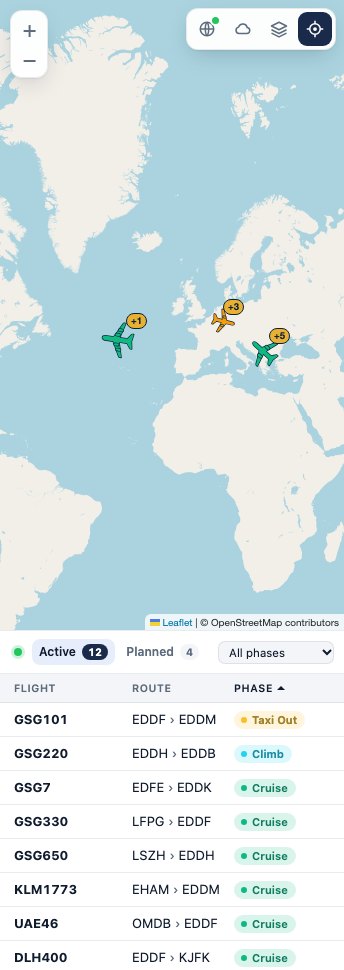
- Aircraft by class: seven silhouettes from piston to four-engine and helicopter, nose in flight direction, stacked flights as one symbol with “+n”.
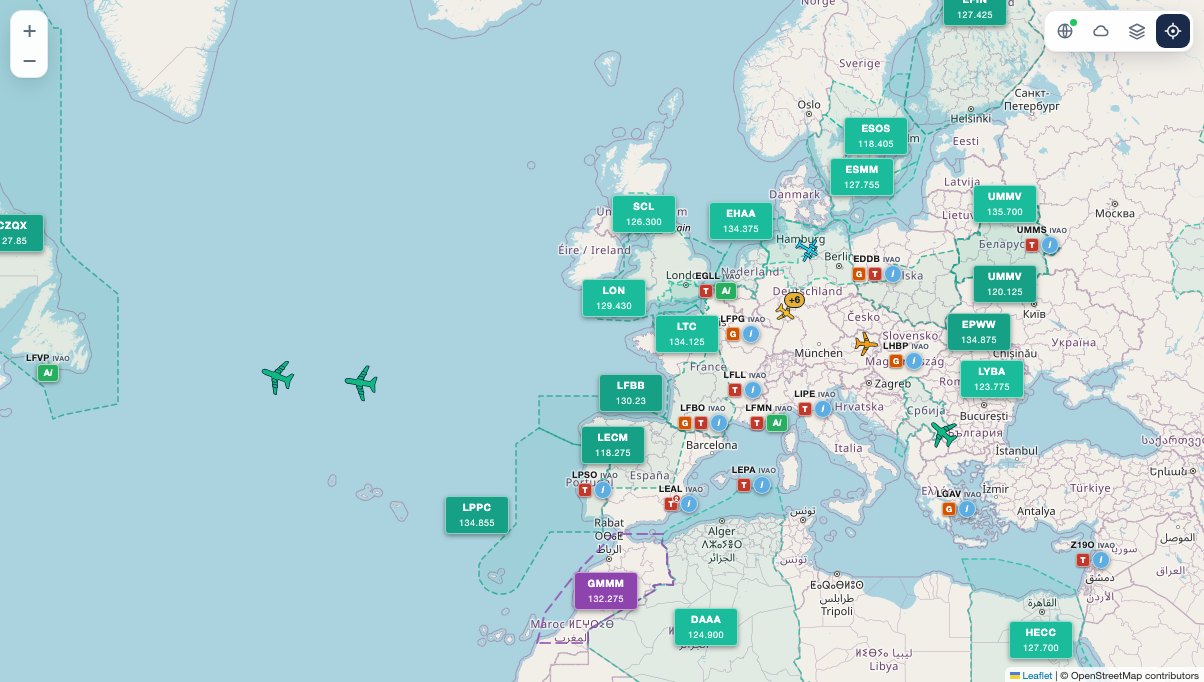
- VATSIM and IVAO: controllers grouped the way VATSIM Radar does it, staffed FIR and sub-sectors with frequency, oceanic areas, IVAO sectors even without VATSIM.
- Shared Cockpit: when two pilots fly one flight together with the SharedCockpit module, the map shows one aircraft. The host’s flight shows “Shared Cockpit · with <name> · Host PF” in the list and in the detail box.
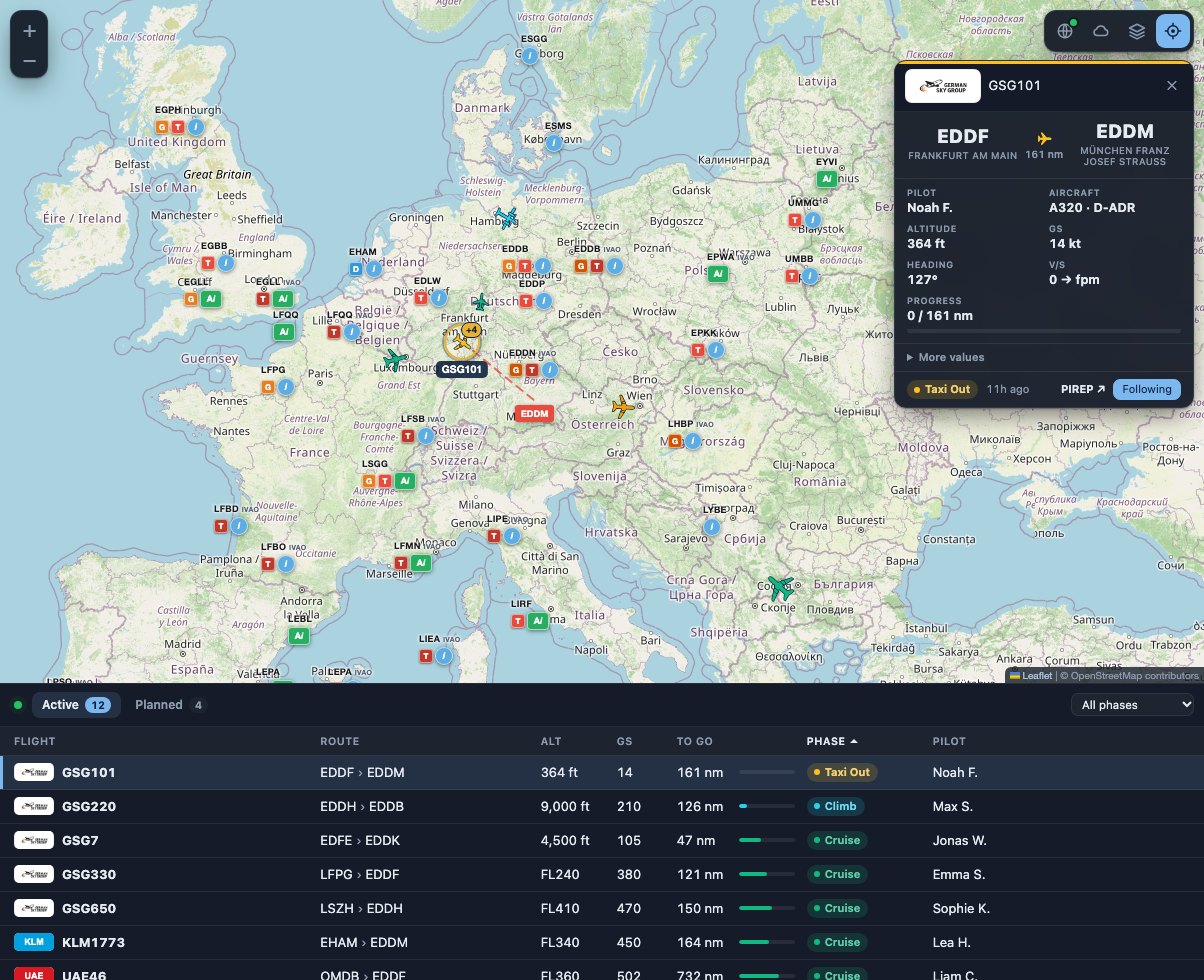
- Your colours: one accent colour for light and one for dark mode. Dark mode follows your theme.
- Any theme, any screen: the map brings its own Leaflet, nothing overlaps at any window size, and phones get a one-column layout.
- Weather: optional OpenWeatherMap layers through a server-side proxy, so your key never reaches the browser.
- Flugliste: aktive und geplante Flüge mit Route, Flugzeugtyp, Höhe, Geschwindigkeit, Reststrecke mit Fortschrittsbalken, geschätzter Ankunft (ETA), Phase und Pilot. Klick auf eine Spalte sortiert. Unter der Karte (Standard), über der Karte oder aus.
- Flugzeuge nach Klasse: sieben Silhouetten vom Kolbenflugzeug bis zum Vierstrahler und Hubschrauber, Nase in Flugrichtung, gestapelte Flüge als ein Symbol mit „+n“.
- VATSIM und IVAO: Lotsen gruppiert wie bei VATSIM Radar, besetzte FIR- und Teilsektoren mit Frequenz, ozeanische Gebiete, IVAO-Sektoren auch ohne VATSIM.
- Shared Cockpit: Fliegen zwei Piloten mit dem Modul SharedCockpit einen Flug gemeinsam, zeigt die Karte ein Flugzeug. Am Flug des Gastgebers steht in der Liste und im Detailkasten „Shared Cockpit · mit <Name> · Gastgeber PF“.
- Eure Farben: eine Akzentfarbe für hell und eine für dunkel. Der Dunkelmodus folgt eurem Theme.
- Jedes Theme, jeder Bildschirm: Die Karte bringt ihr eigenes Leaflet mit, nichts überlappt bei keiner Fenstergröße, Handys bekommen eine einspaltige Ansicht.
- Wetter: optionale OpenWeatherMap-Ebenen über einen Server-Proxy, euer Schlüssel erreicht nie den Browser.
The settings page
Die Einstellungsseite
Everything is configured under Admin → Live Map, open to every staff member with admin panel access. A status row at the top shows the flight source, the basemap, the weather and the phpVMS ACARS live time. Below come seven sections with a short help text for every setting.
Alles wird unter Admin → Live Map eingestellt, offen für jeden mit Zugang zum Admin-Bereich. Oben zeigt eine Statuszeile Flugquelle, Grundkarte, Wetter und die ACARS-Live-Zeit von phpVMS. Darunter folgen sieben Abschnitte mit einem kurzen Hilfetext je Einstellung.
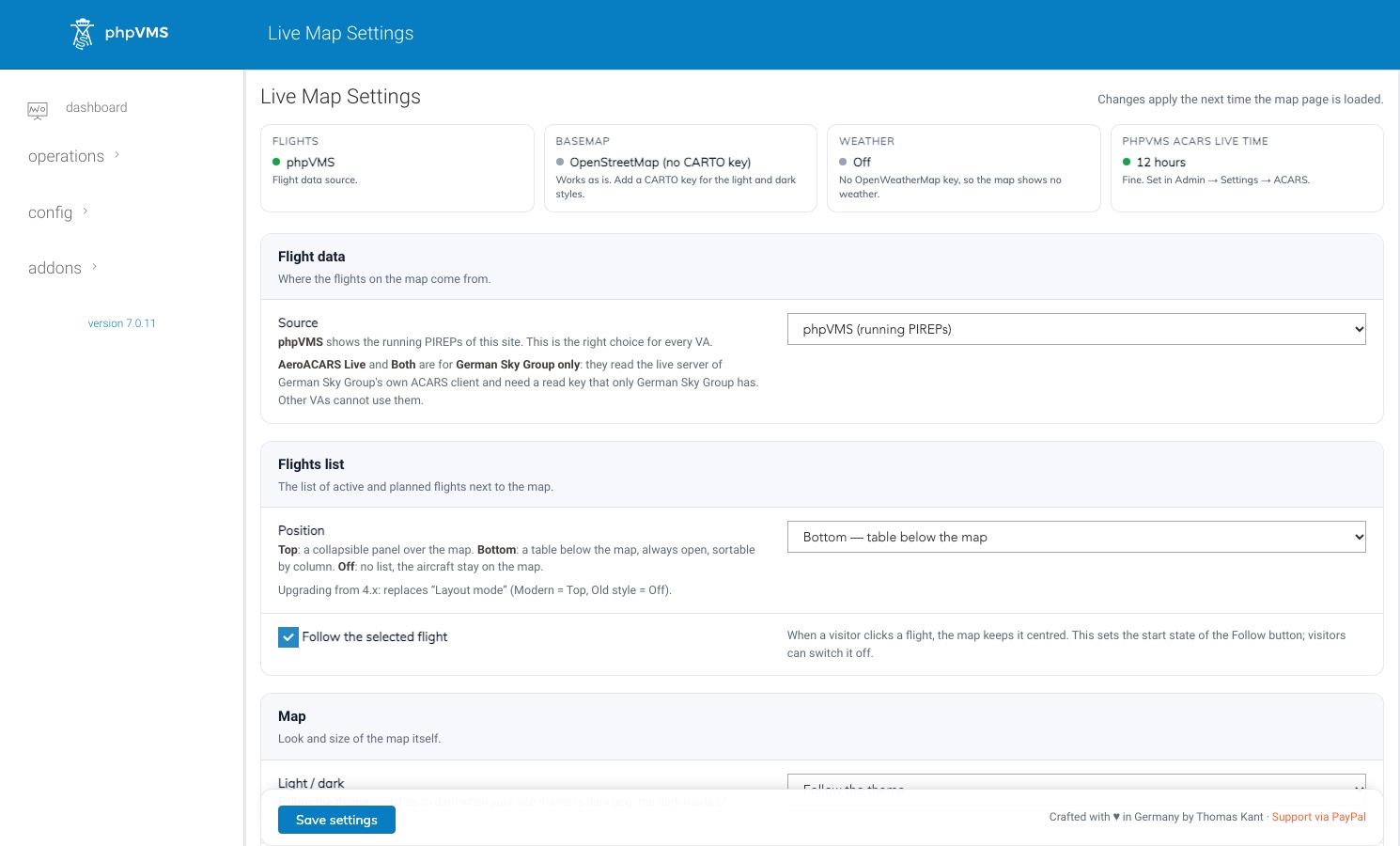
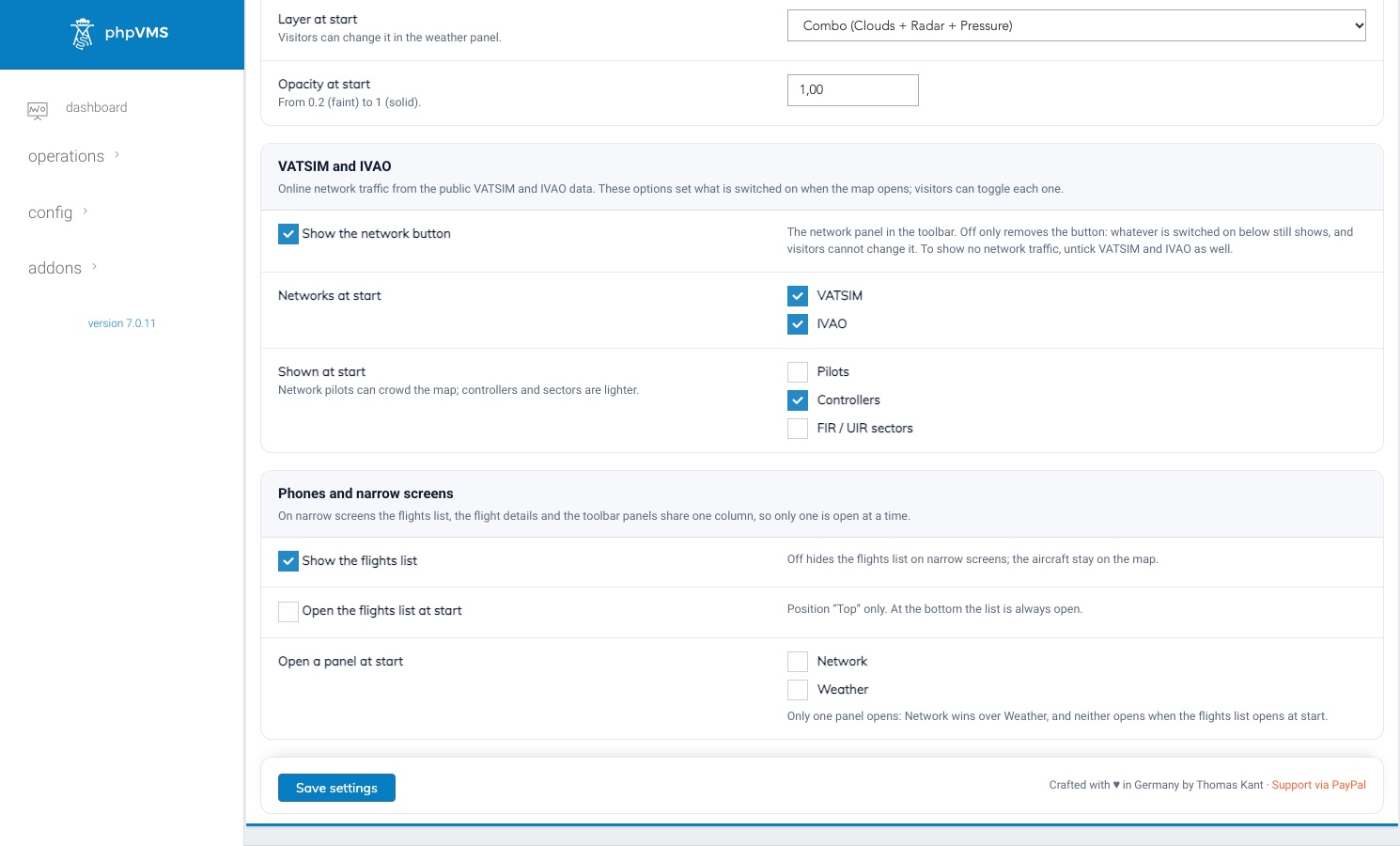
The sources “AeroACARS Live” and “Both” are for German Sky Group only: they need a read key that only German Sky Group has. Every other VA uses the source phpVMS, which shows the running PIREPs of your own site.
Die Quellen „AeroACARS Live“ und „Beide“ gibt es nur für German Sky Group: Sie brauchen einen Lese-Schlüssel, den nur German Sky Group hat. Alle anderen VAs nutzen die Quelle phpVMS, die die laufenden PIREPs der eigenen Seite zeigt.
First install with Seven, FTP only
Erstinstallation mit Seven, nur per FTP
All you need is an FTP client or your host’s file manager and an admin login. <phpvms> is the folder that contains .env, app/, modules/ and resources/.
Ihr braucht nur ein FTP-Programm oder den Dateimanager eures Hosters und einen Admin-Zugang. <phpvms> ist der Ordner mit .env, app/, modules/ und resources/.
| Step | What to do |
|---|---|
| 1 | Download LiveMap-full-package-v5.3.0.zip from GitHub and unzip it on your computer. |
| 2 | Upload the folder LiveMap to <phpvms>/modules/LiveMap/ (capital L and M). |
| 3 | Upload live_map.blade.php to <phpvms>/resources/views/layouts/seven/widgets/ and overwrite the file there. Other themes: layouts/<Theme>/widgets/. |
| 4 | Admin → addons/modules → LiveMap under “Not Installed Modules” → Activate Module. |
| 5 | Admin → Maintenance → Clear all caches. |
| 6 | Admin → Live Map: keep the source phpVMS, add an OpenWeatherMap key if you like, Save. |
| 7 | Open /livemap and reload with Ctrl+F5. |
| Schritt | Was zu tun ist |
|---|---|
| 1 | LiveMap-full-package-v5.3.0.zip von GitHub laden und auf dem PC entpacken. |
| 2 | Den Ordner LiveMap nach <phpvms>/modules/LiveMap/ hochladen (großes L und M). |
| 3 | live_map.blade.php nach <phpvms>/resources/views/layouts/seven/widgets/ hochladen und die Datei dort überschreiben. Andere Themes: layouts/<Theme>/widgets/. |
| 4 | Admin → addons/modules → LiveMap unter „Not Installed Modules“ → Activate Module. |
| 5 | Admin → Maintenance → Clear all caches. |
| 6 | Admin → Live Map: Quelle phpVMS lassen, bei Bedarf OpenWeatherMap-Schlüssel eintragen, Save. |
| 7 | /livemap öffnen und mit Strg+F5 neu laden. |
Updating from 4.x or 5.0: upload the new module as modules/LiveMap_new/ first and swap the folders by renaming, never overwrite the running folder. Then delete the old live_map_scripts.blade.php and live_map_styles.blade.php in your theme. All steps are in INSTALL.txt inside the ZIP.
Update von 4.x oder 5.0: das neue Modul zuerst als modules/LiveMap_new/ hochladen und die Ordner per Umbenennen tauschen, den laufenden Ordner nie überschreiben. Danach im Theme die alten live_map_scripts.blade.php und live_map_styles.blade.php löschen. Alle Schritte stehen in der INSTALL.txt im ZIP.